
How to Scan QR Codes
Learn how to scan QR codes in the mobohubb mobile app. This guide explains how to access the scanning feature, align your device’s camera with a QR code, and what happens if the code isn’t recognized. It also highlights how scanning may trigger tasks or forms depending on the assigned configuration.
In this guide you'll learn
- Where to find the Scan / NFC option and how to enable camera access
- How to scan a QR code for tasks or forms
- What to expect during the validation process
- How to track scan-related activities in My Activity
QR Codes
A scan point is an element that can be read with a mobile device to obtain information. mobohubb supports QR codes and NFC tags.
Steps to Scan a QR Code
- Locate the Scan tool:
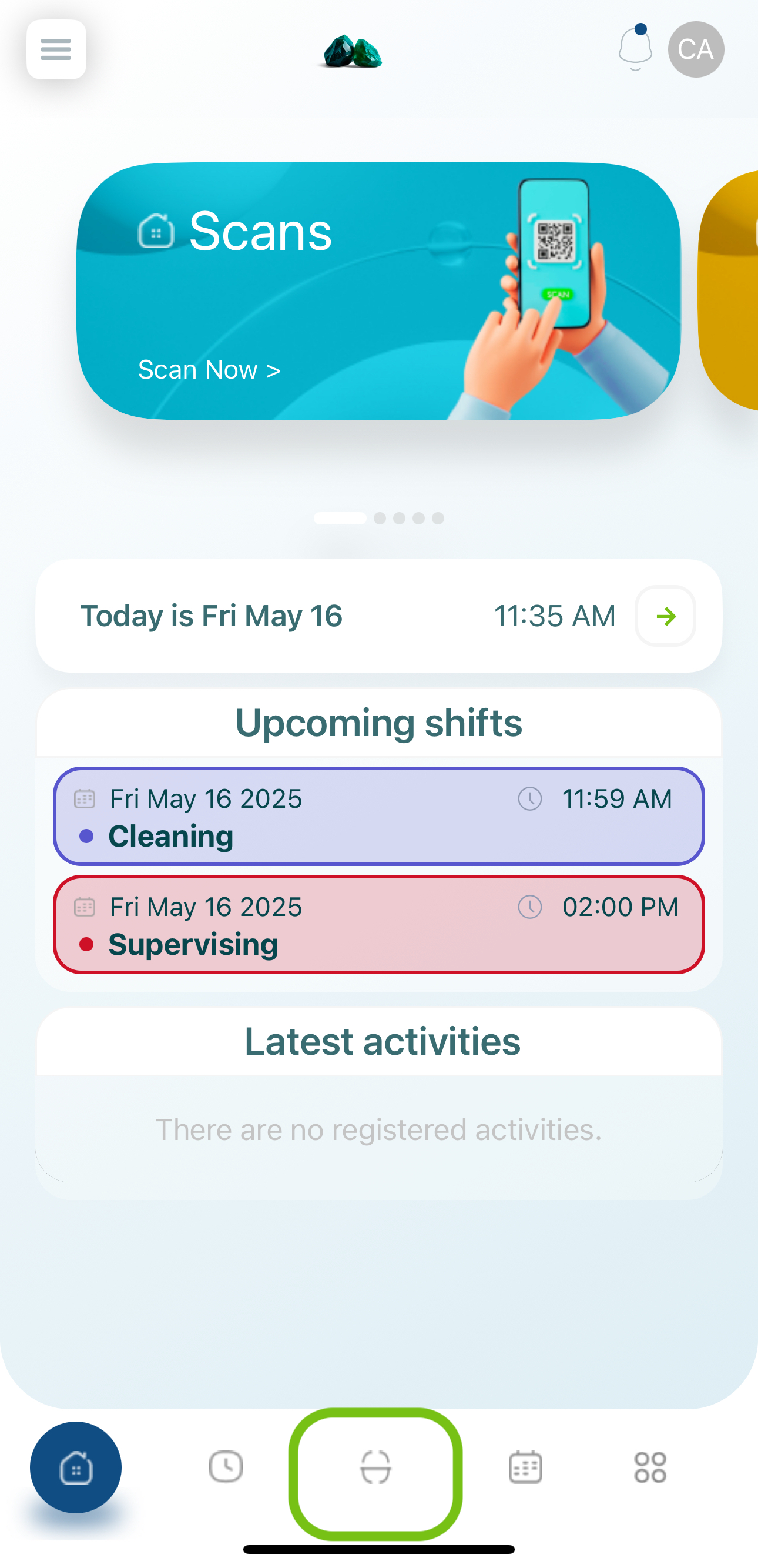
- Activate the camera. Mobohubb will request permission to use your camera if it has not already been granted.
- Aim at the QR code. Ensure no objects are blocking the camera view.
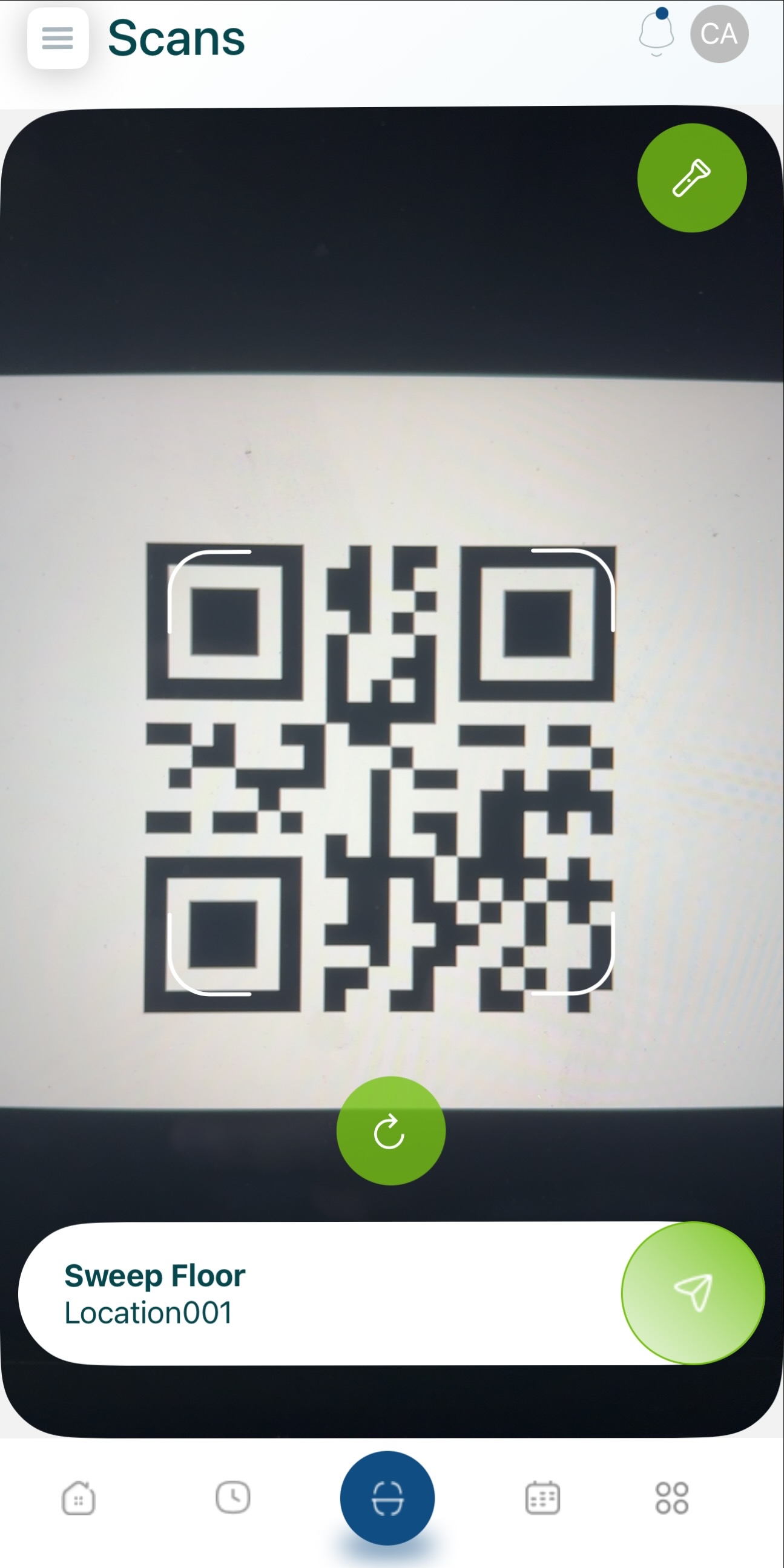
-
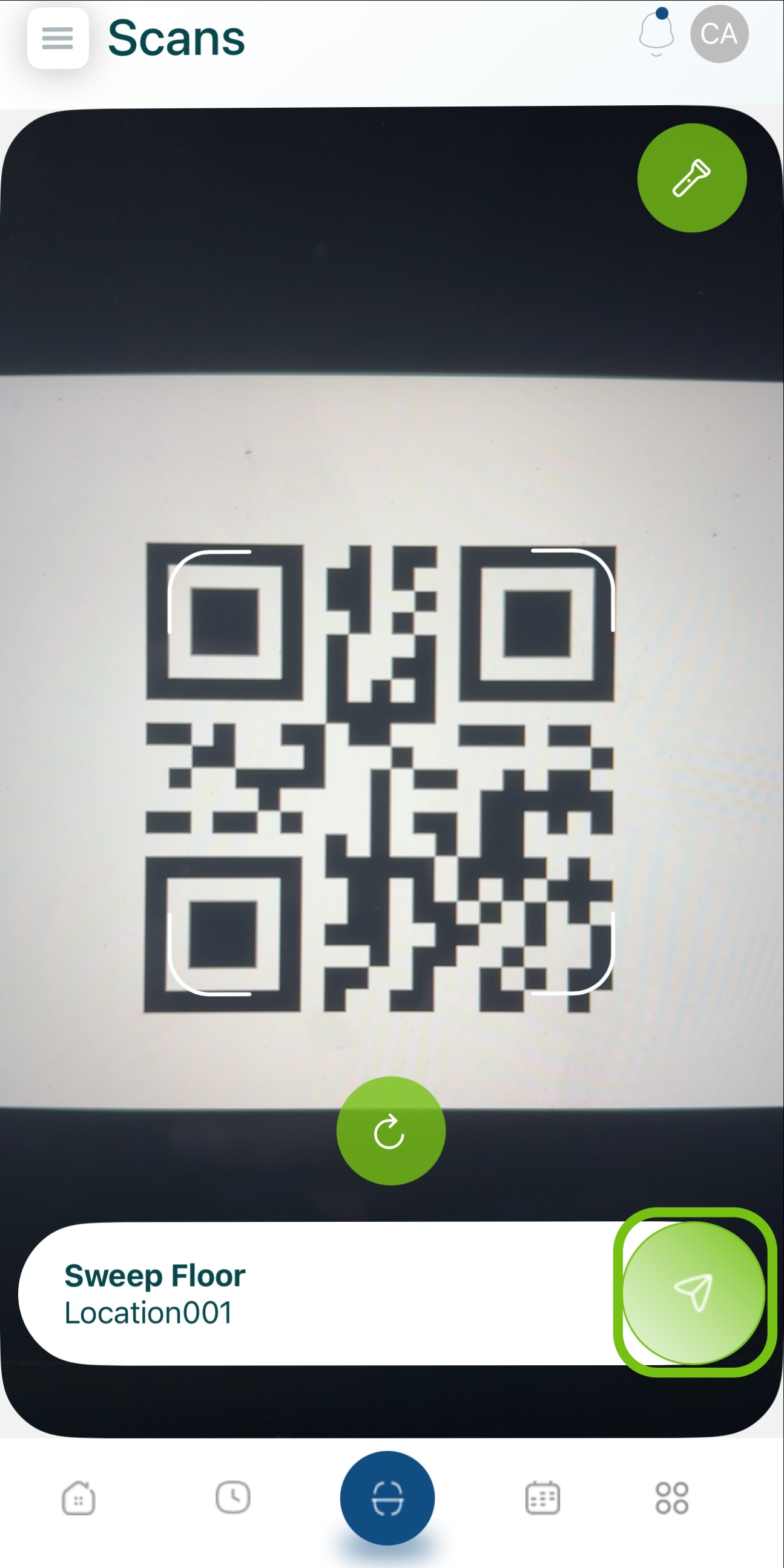
Submit the QR code.
- If the code matches a registered scan point, you can proceed.
- If the code is not recognized, you'll see a "not registered" message. Contact your administrator.
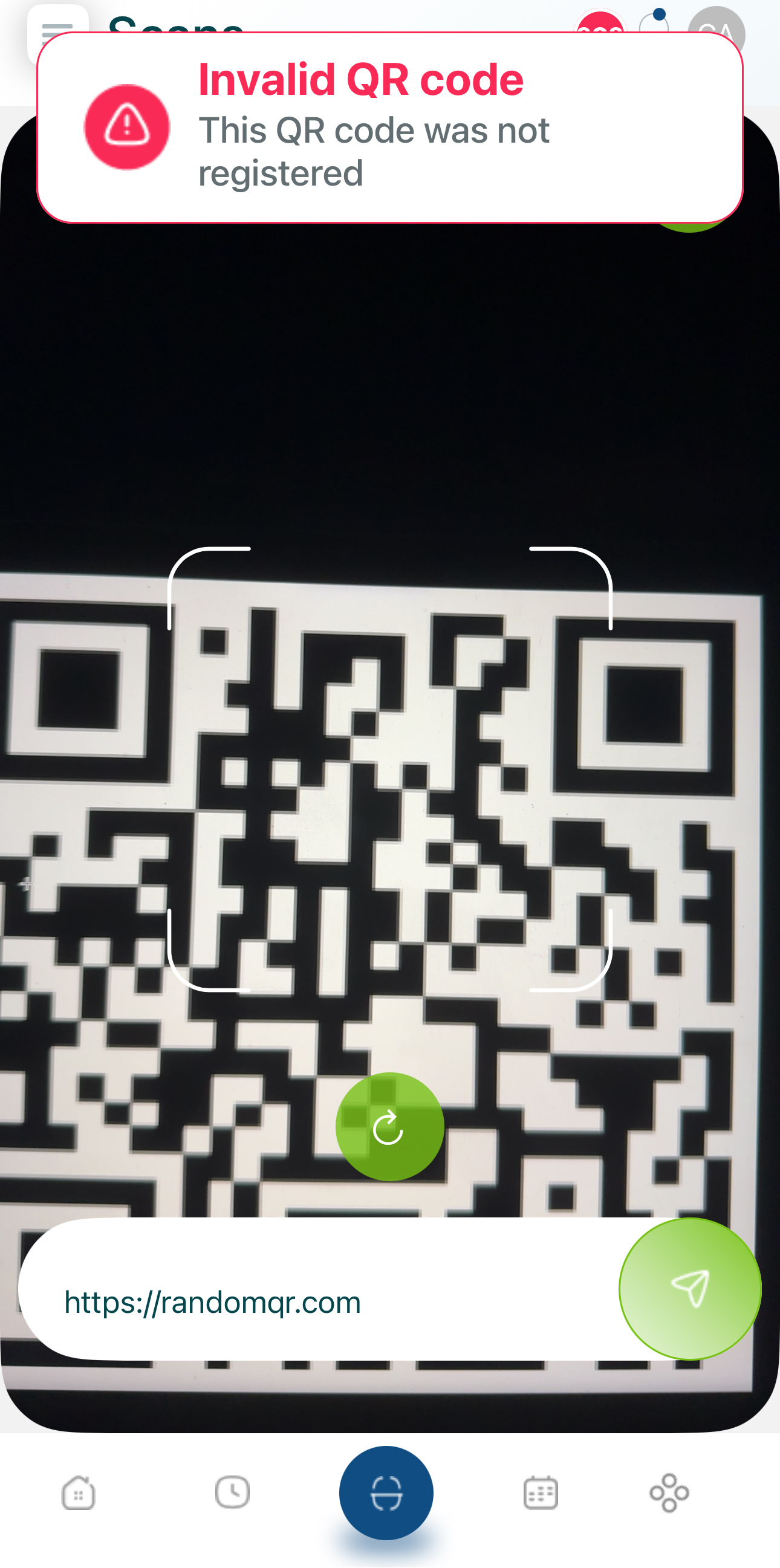
-
Close and validate. Once validation completes, tap Close to finalize.

Note: You can review your scan logs under My Activity to confirm successful submissions.
Updated over 1 year ago
Did this page help you?