
Alert Data
Learn how to view and manage Alert Data in mobohubb, which logs information whenever a mobile device sends an alert—capturing the scanning point, location, and timestamp of the alert.
In this guide you'll learn
- What Alert Data contains
- How to filter and manage alert records
- How to export the current view in Excel
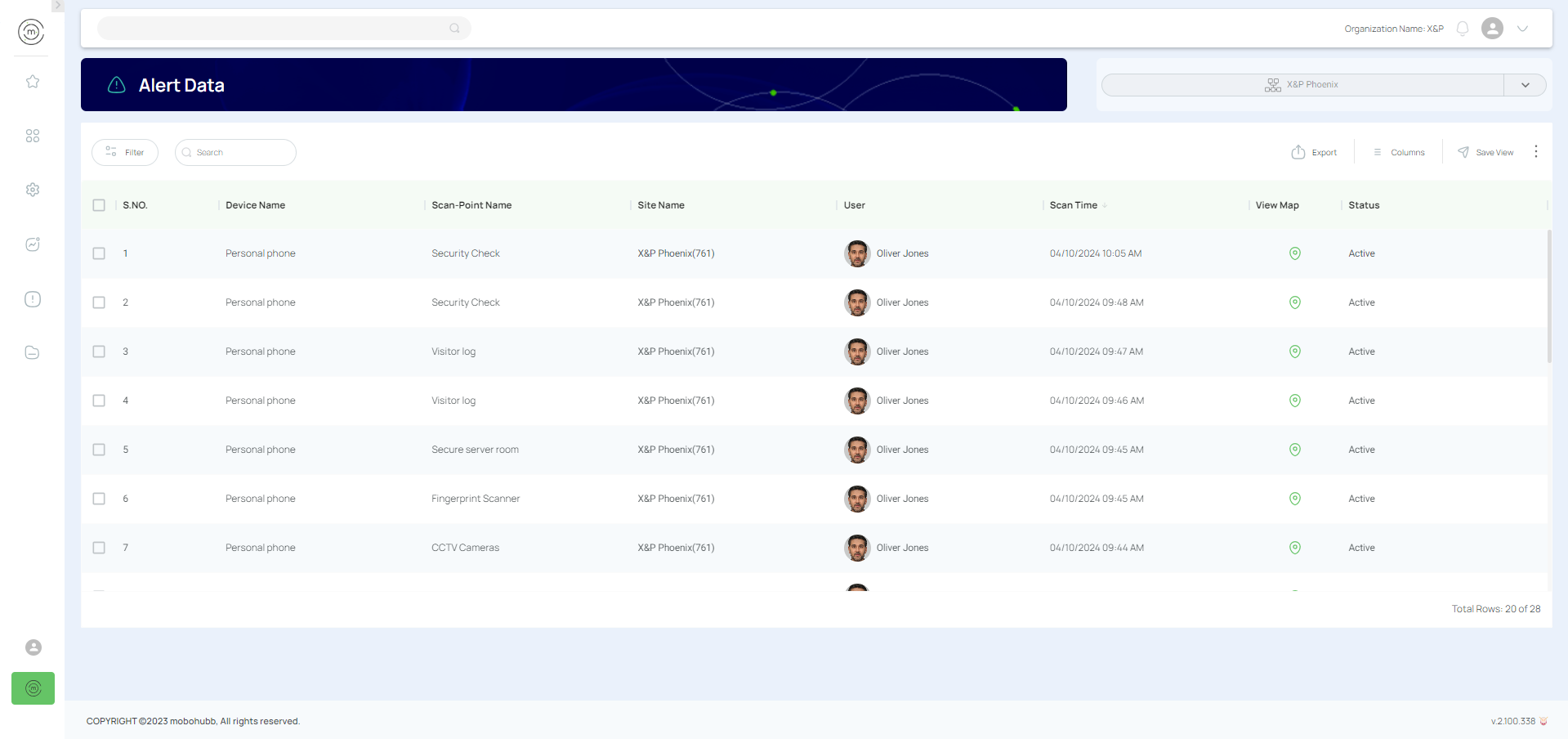
Alert Data is generated by a user’s mobile device whenever an alert is triggered. It records details such as the scanning point, the location where the alert was sent, and the time and date of the alert.
Export and Manage Alert Data
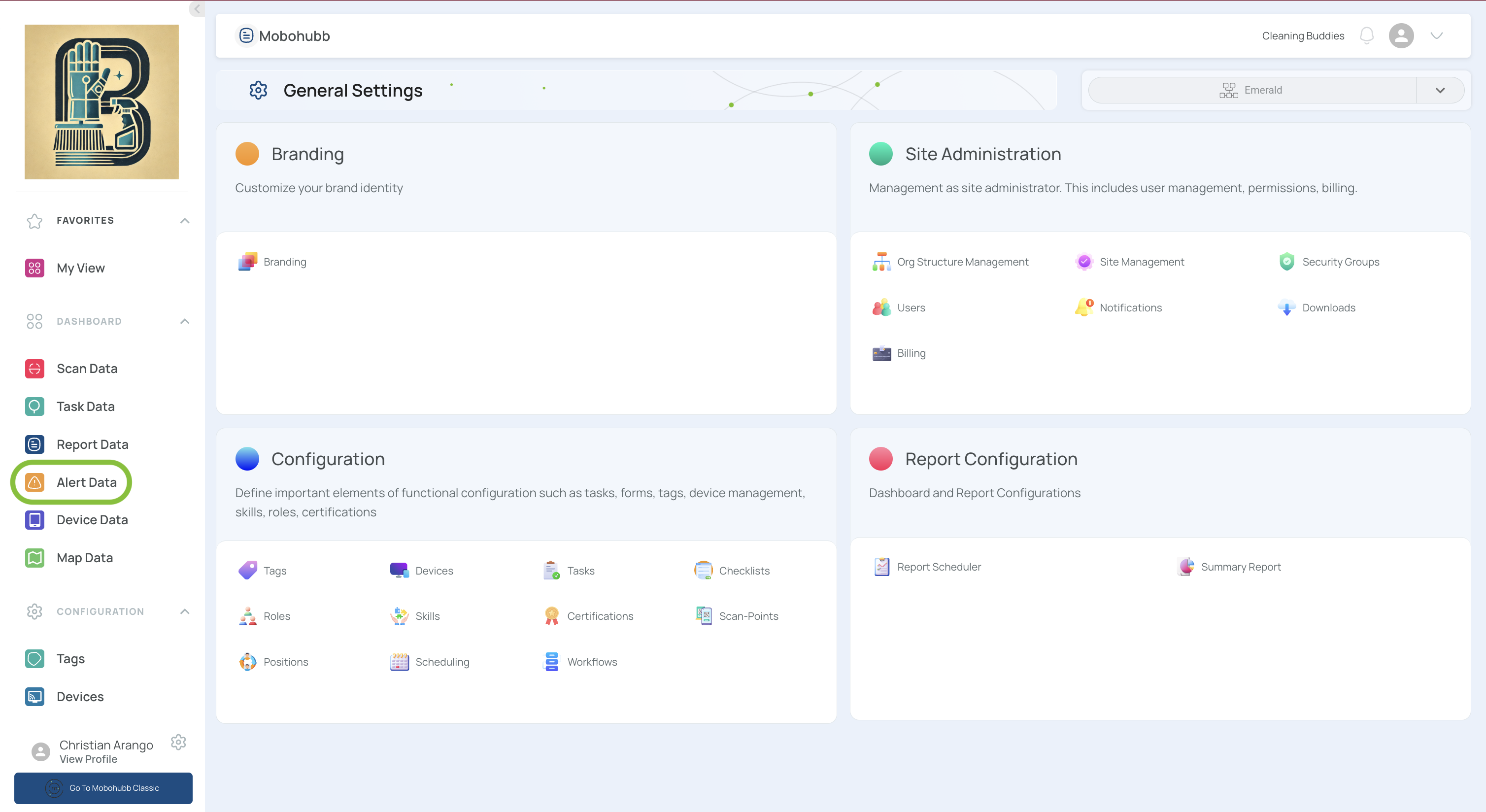
- Navigate to “Alert Data” in the side menu of the portal. (You can use the search bar in the top menu if needed.)
- Filter your records using quick or advanced filters.
- You can create as many logical rules as necessary by clicking “Add New Filter.”
- Press “Apply” to confirm your selections.
- Refer to your Filters guide for in-depth instructions on advanced filtering.
- Review the relevant alert information in the main table.
- Checking the upper checkbox selects all displayed records.
- Click “Export.”
- Make sure you’ve selected the rows you want to include.
- Choose “Export current view.”
- If the file is within the size limit, an Excel file downloads immediately.
- If it exceeds the limit, you’ll find the file under Downloads on the platform.
Updated 7 months ago