
Multi-Factor Authentication (MFA)
MFA adds an extra layer of security to your mobohubb portal login by requiring a second method of identification. You can enable either 2-Factor authentication with a phone number or 2-Factor authentication with an app-based token—but not both simultaneously.
In this guide you'll learn:
- How to enable MFA via phone or app-based token
- How to deactivate MFA if you no longer need it
- Important notes on managing MFA options in your profile settings
Enabling MFA
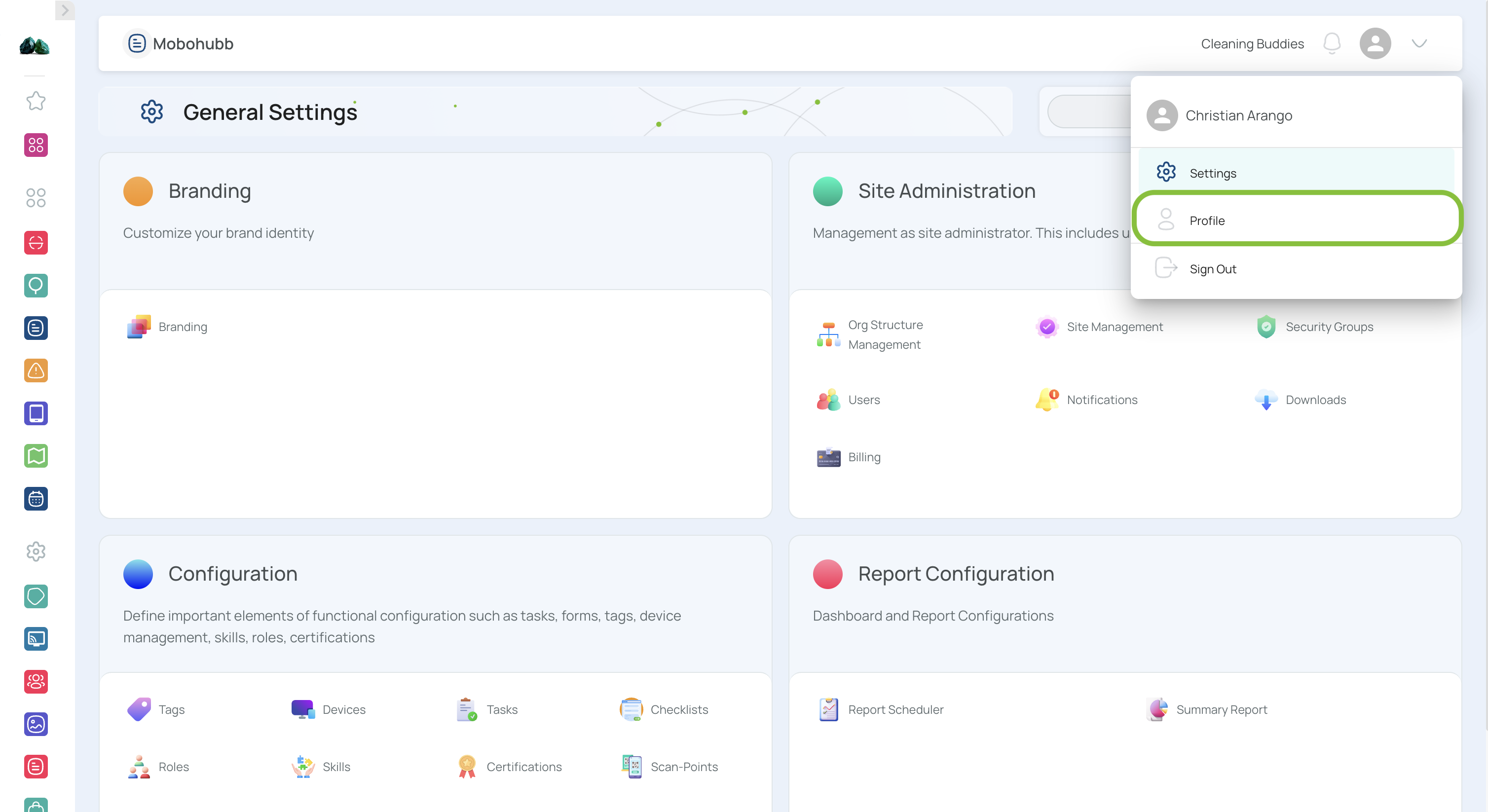
- Open the mobohubb portal’s top menu and click on Profile.
- Navigate to “Security Settings”.
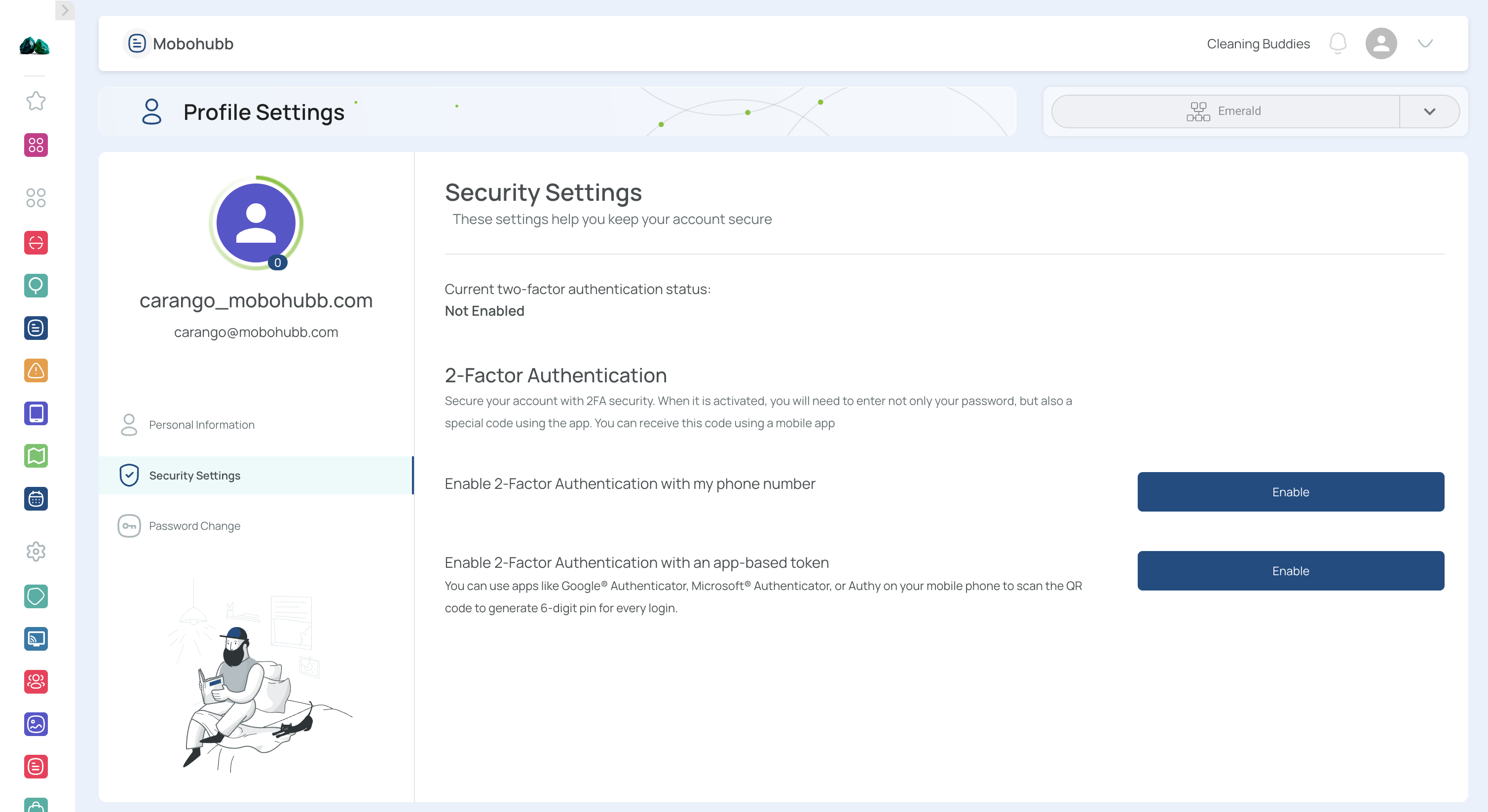
4. Enable authentication with phone number
- This links MFA to the user’s phone number.
- Click the button to enable 2-Factor phone authentication.
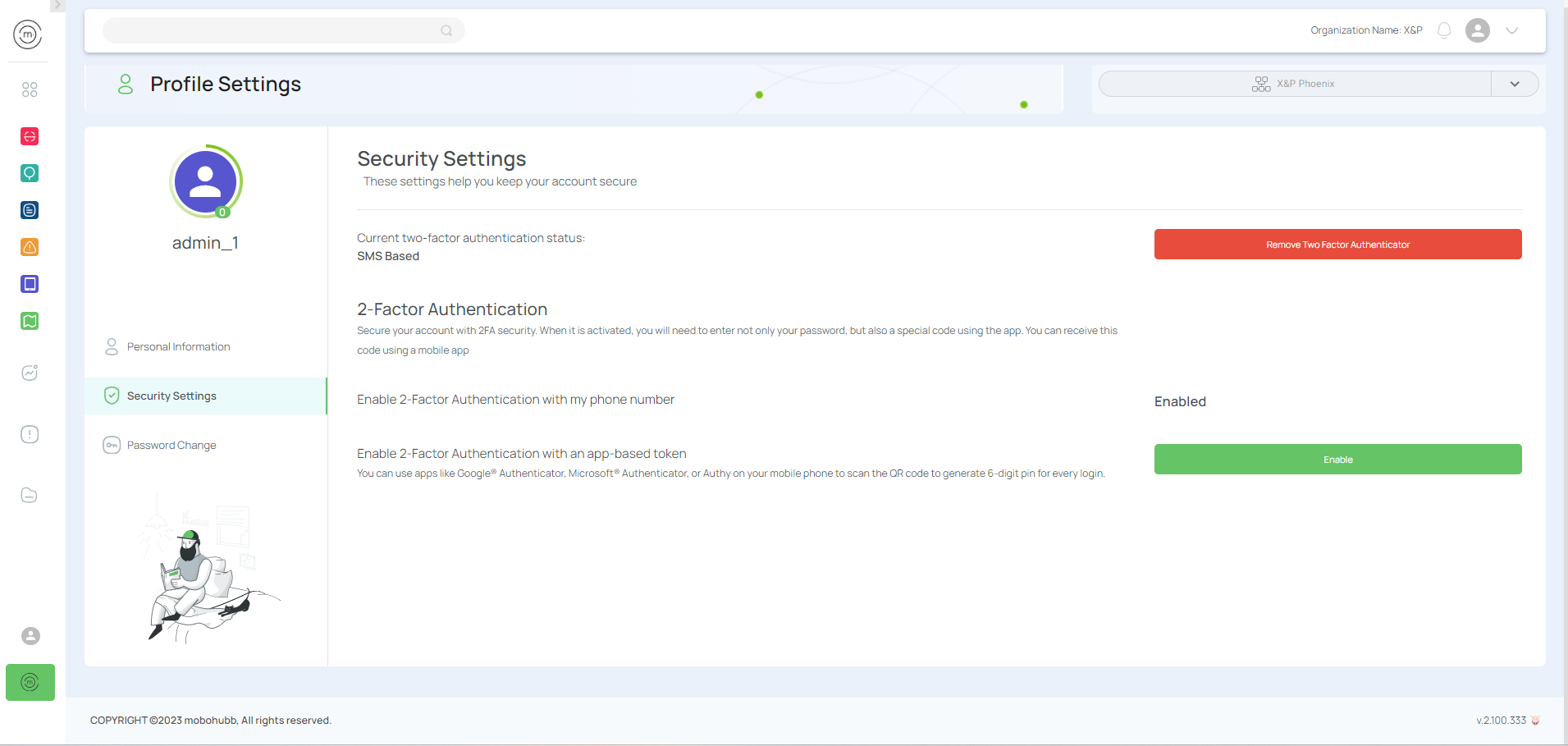
Note: If you choose this method, you may skip the app-based token steps.
5. Enable authentication with an app-based token
- Click “Enable” to display a QR code.
- Scan this code with your Microsoft Authenticator (or similar) app.
- Enter the token generated by the authenticator in the empty field.
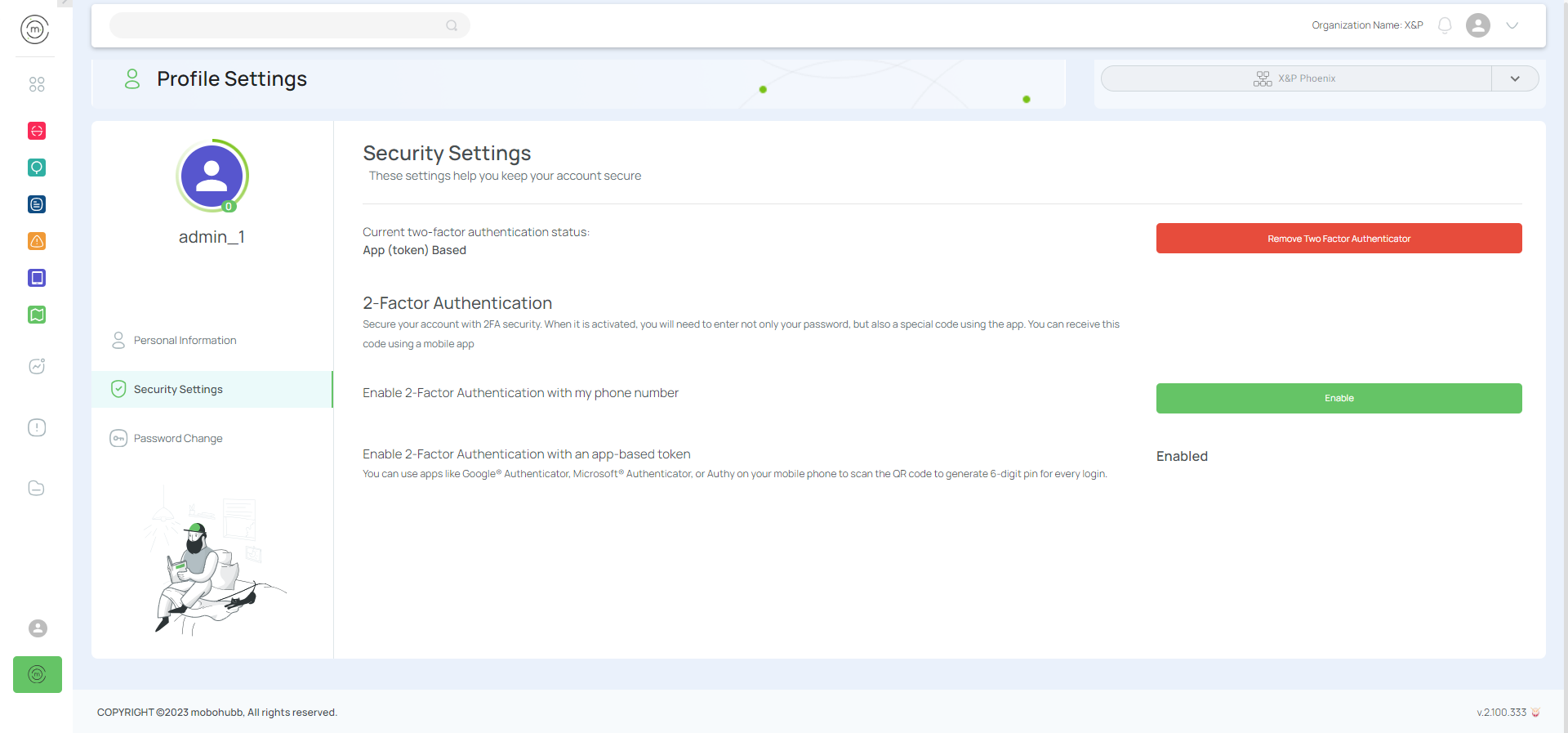
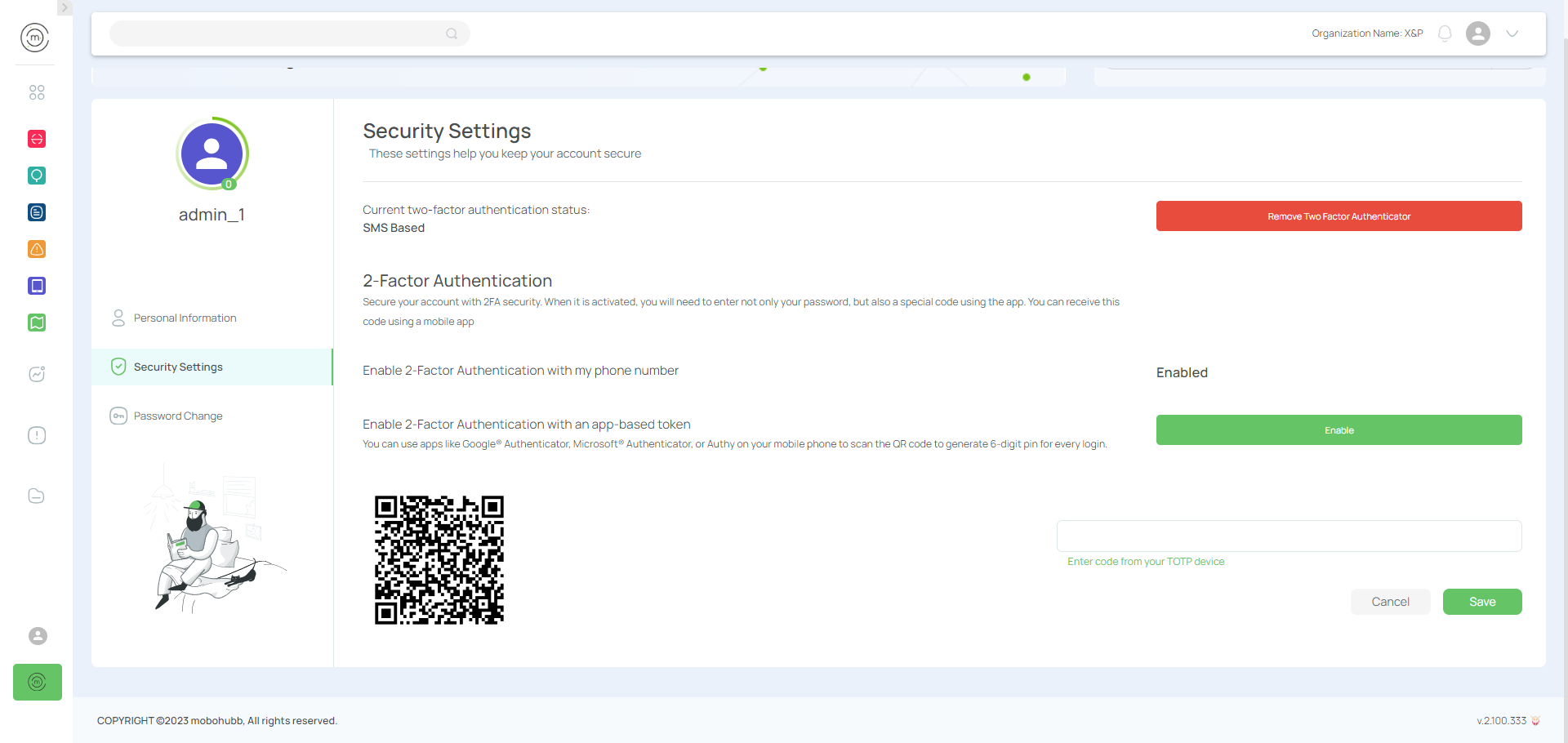
Important: Only one method can be active at a time. If phone-based 2FA is enabled, you cannot enable app-based, and vice versa.
Using MFA at Login
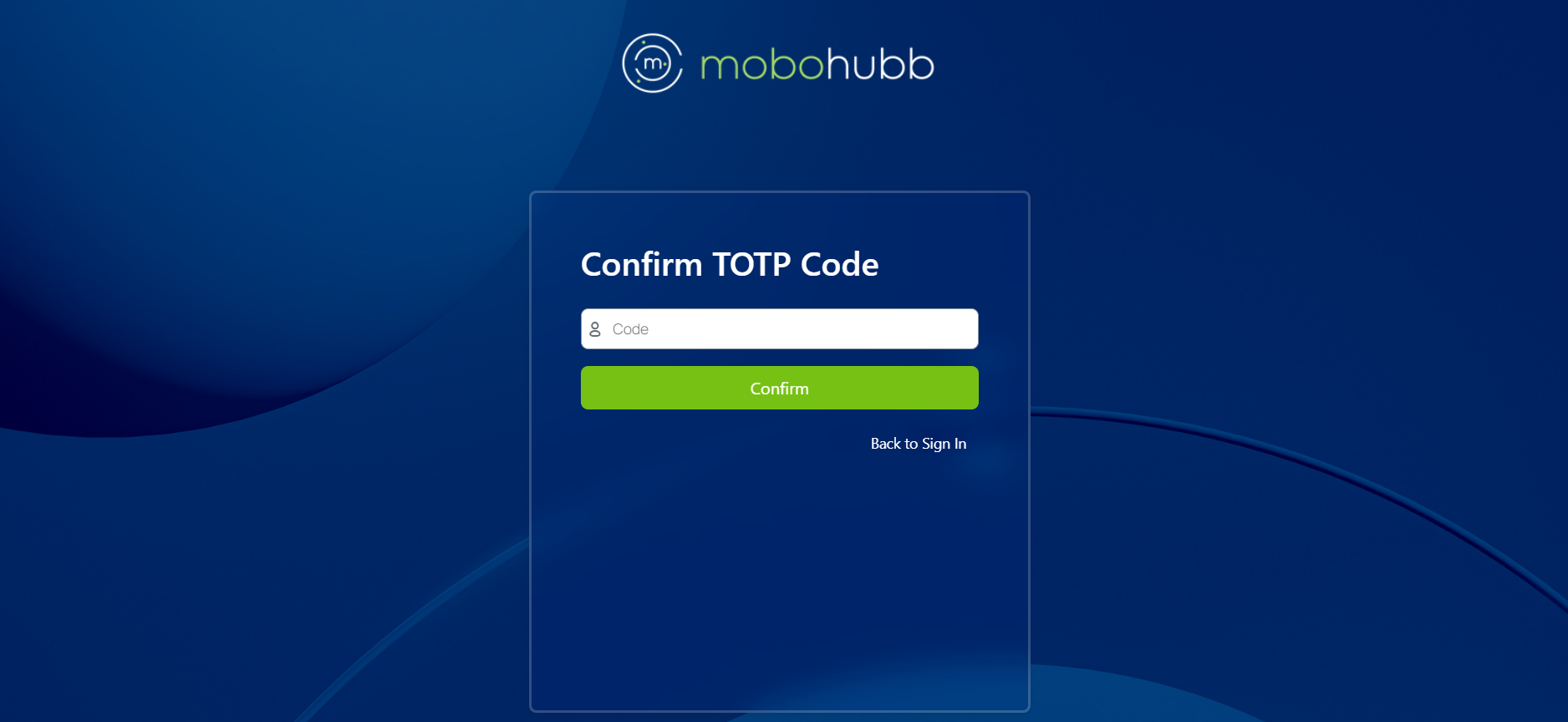
After entering your username and password, the system prompts you to complete the second factor:
- Phone: Enter the verification code sent via SMS.
- App: Enter the token generated by your authenticator app.
Deactivating MFA
If you need to disable multi-factor authentication:
-
Remove 2FA
- Click “Remove Two-Factor Authenticator.”
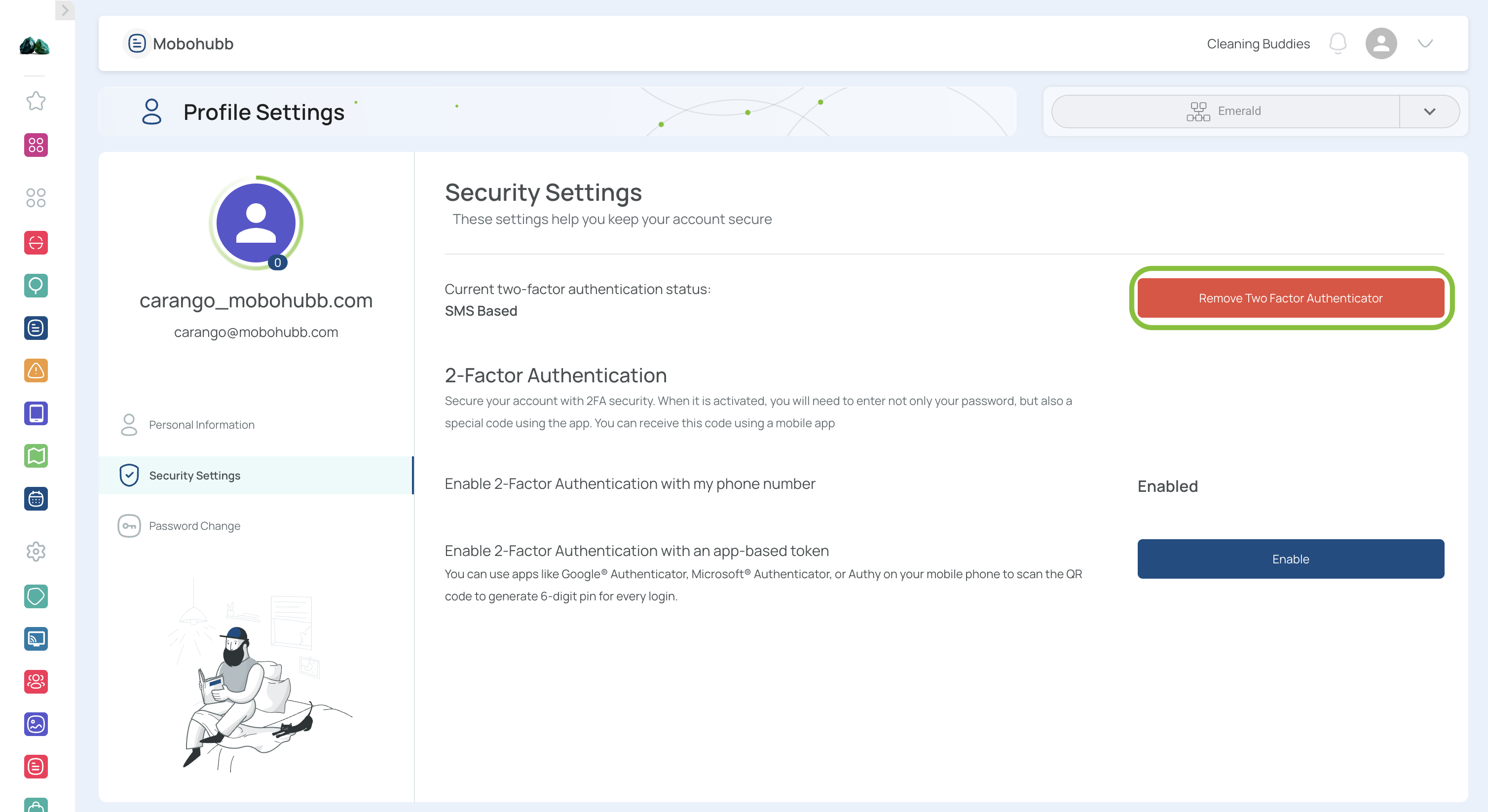
Once deactivated, you’ll return to the standard username + password login flow.
You’re all set!
MFA is now successfully integrated into your security routine. Enjoy the added protection for your mobohubb account.
Updated over 1 year ago