
Branding & Time Zone
Learn how to update organization and site branding, time settings, and time zones.
In This Guide You'll Learn
- How to access organization and site branding and time settings
- How to update branding elements, time formats, and time zones
- The inheritance behavior that controls whether sites use organization-level settings
How to Update Organization Branding
-
Open the portal’s top menu.
-
Select Settings to access your organization’s configuration options.
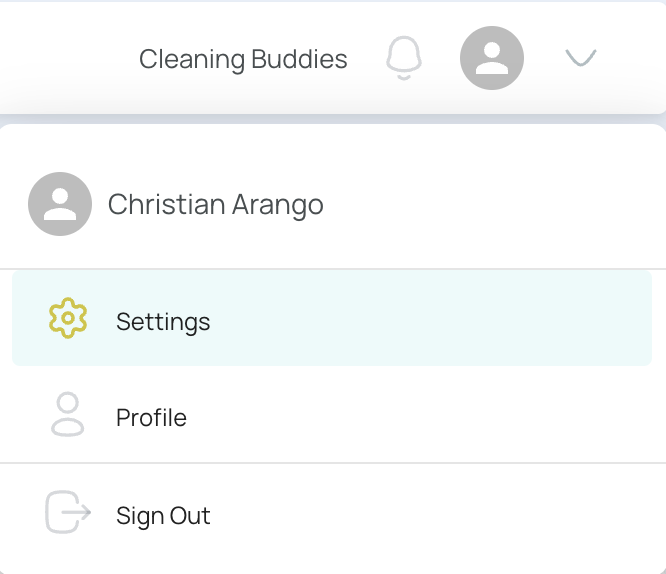
You can also use the side menu to reach the general settings area.
- Go to Branding and Time Settings.
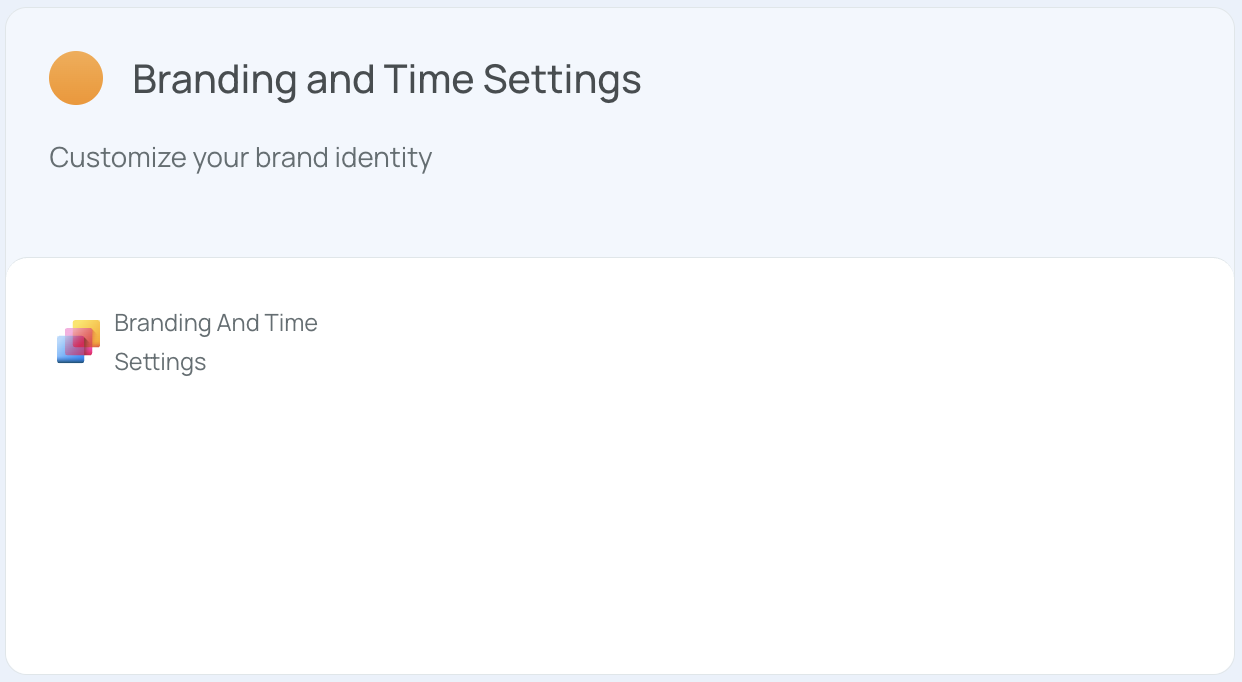
- In the Branding section, update the fields you want to change.
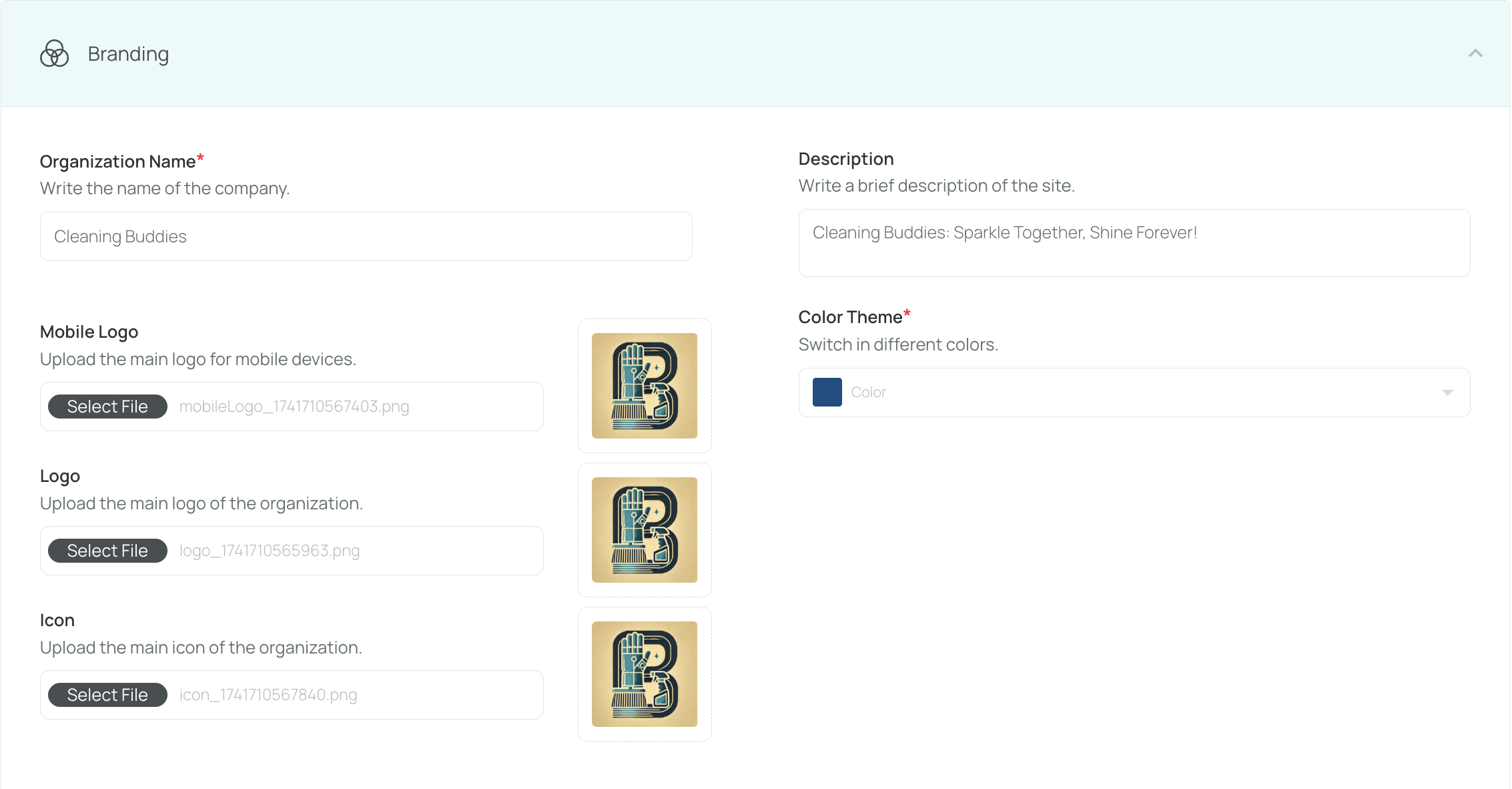
Available fields include:
- Organization Name: Enter the company name
- Description: Add a short introduction to the organization or site
- Mobile Logo: Upload the logo used in the mobile app
- Logo: Upload the primary logo used in the web portal
- Icon: Upload the graphic used to represent the organization
- Click Save to apply your changes.
The organization branding will now be updated across the platform where applicable.
How to Update Organization Time Settings
-
In Branding and Time Settings, locate the Time Settings section.
-
Configure the fields as needed:
- Time Format: Select 12-hour or 24-hour format
- Date Format: Select the preferred format, such as dd/mm/yy or dd/mm/yyyy
- Week Start: Define the first day of the work week
- Work Day Start Time: Define the start time of the workday for working days
- Time Zone: Select the appropriate time zone for the organization
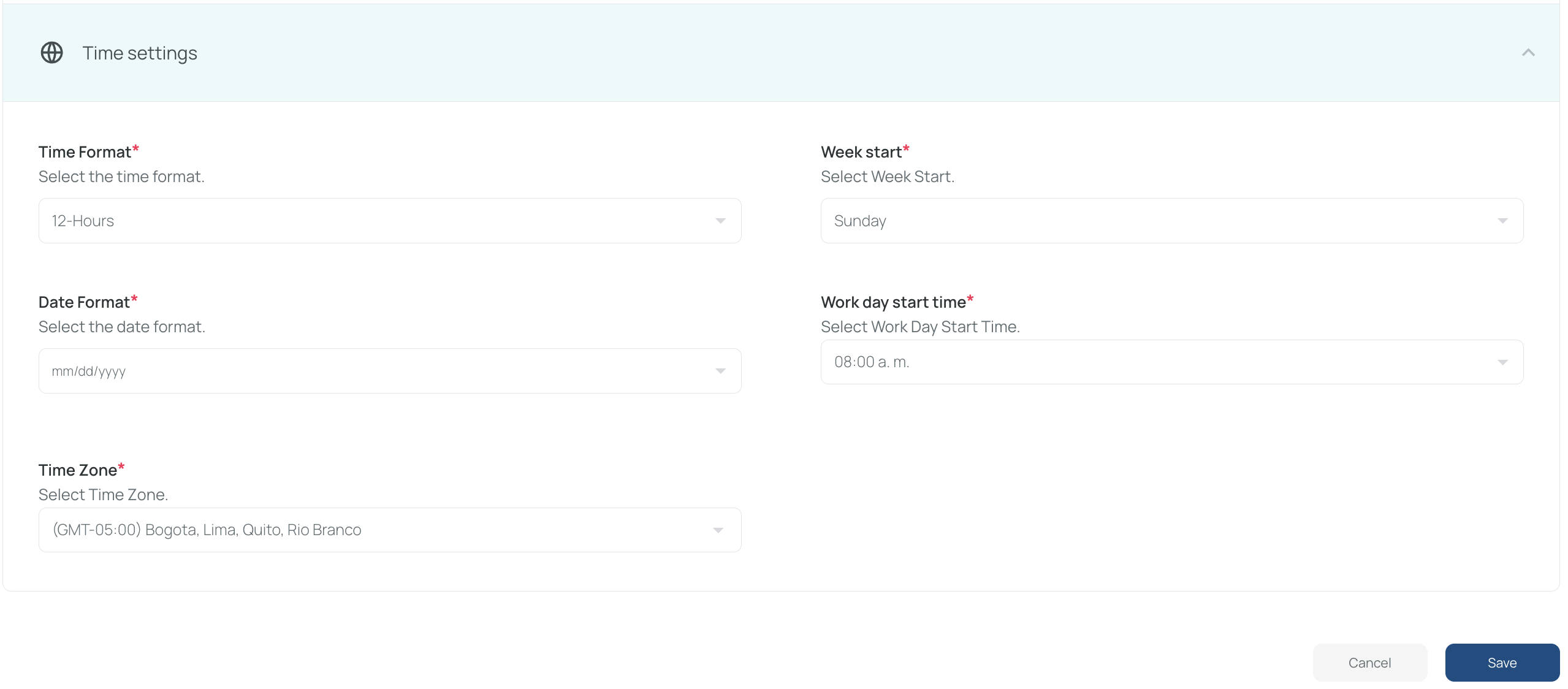
- Click Save to apply your changes.
The organization will now use the selected time settings.
How to Update Site Branding
By default, each site inherits the main organization’s branding. You can turn that off and apply custom branding at the site level.
-
Open the portal’s top menu.
-
Select Settings to access your organization’s configuration options.
You can also use the side menu to reach the general settings area.
- Go to Site Management.
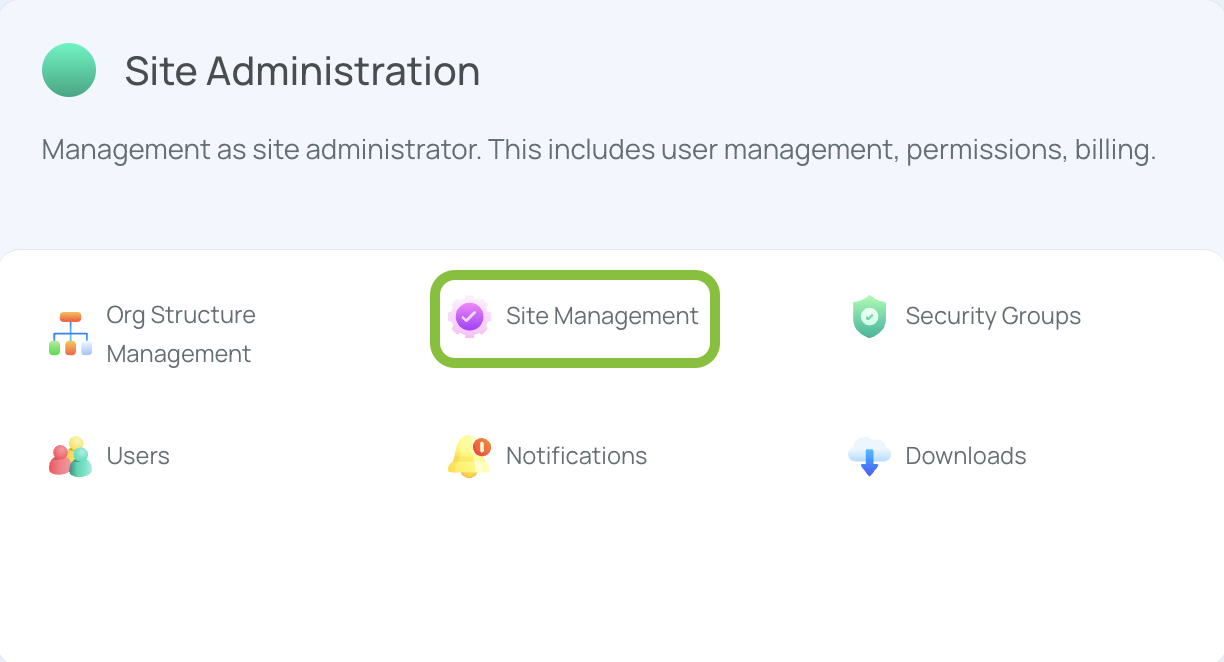
- Select the site you want to modify.
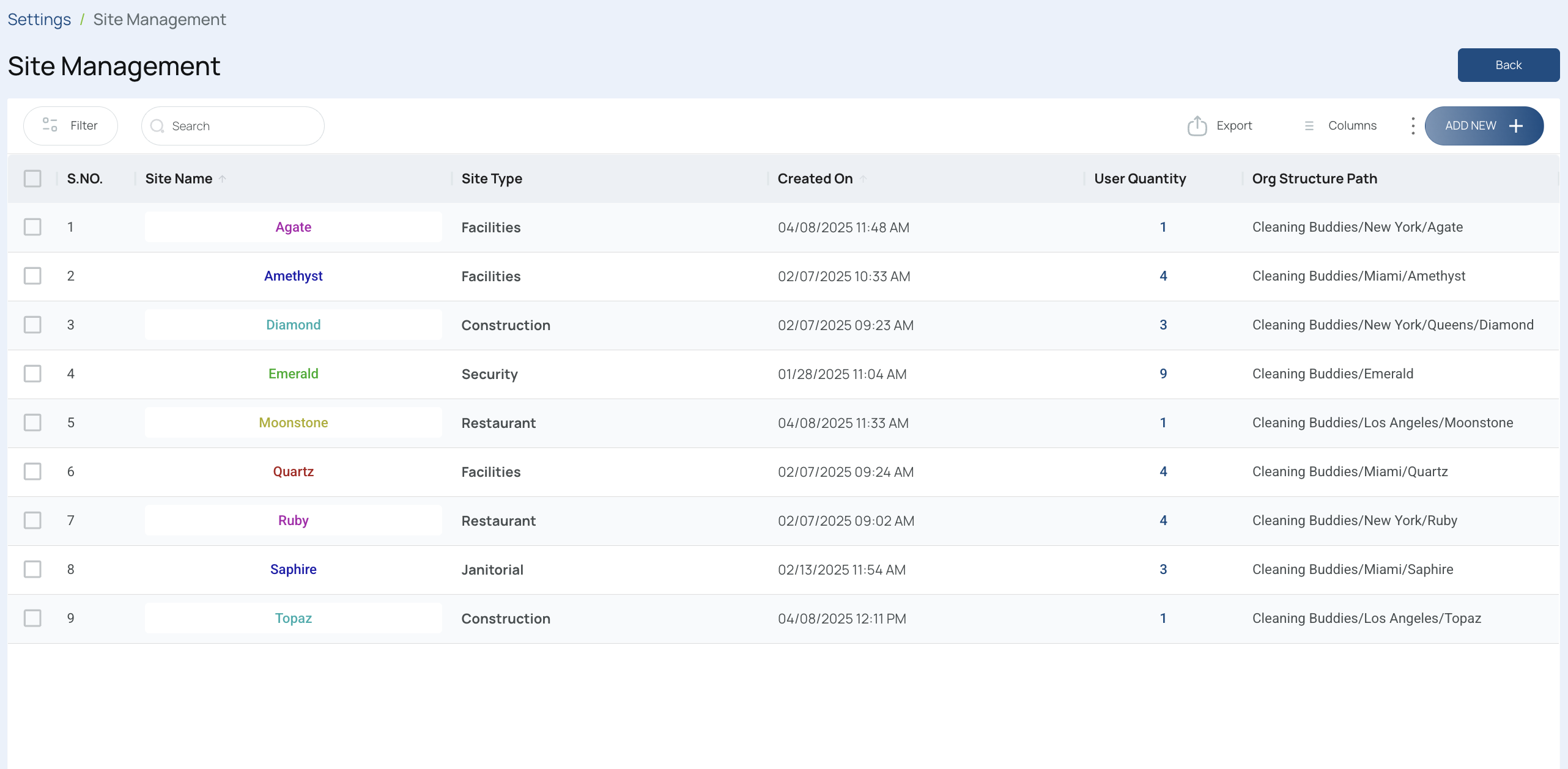
- Open Branding and Time Settings, then go to the Branding section.
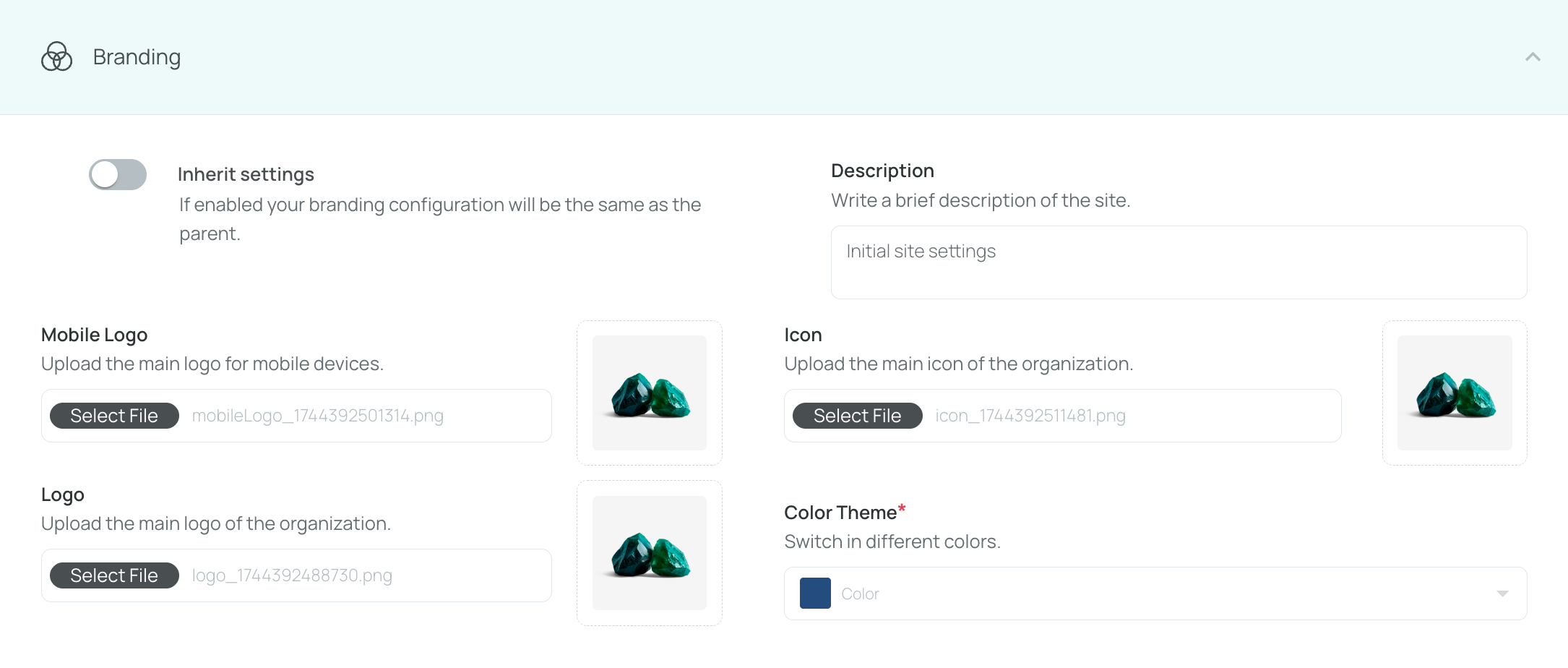
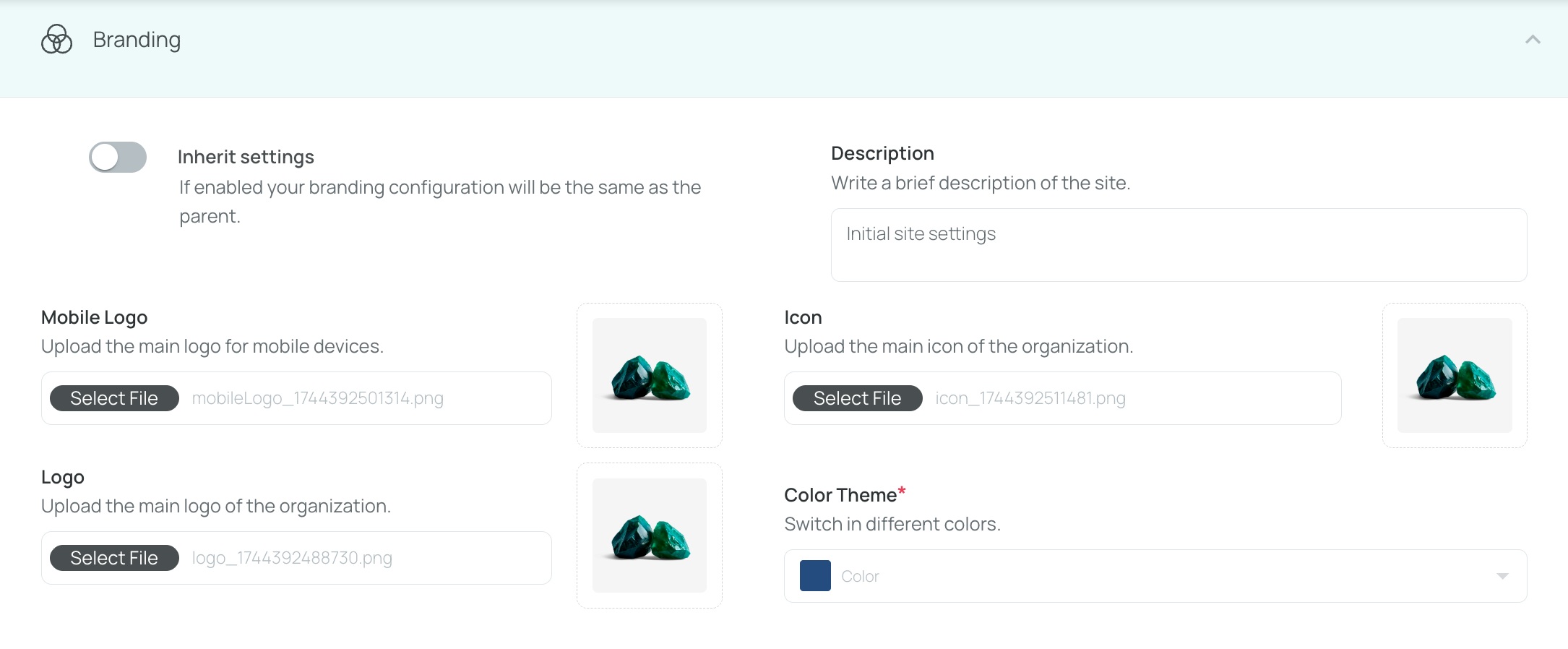
ImportantBy default, Inherit Settings is enabled. This applies the organization’s branding and time settings to the site automatically.
To customize the site’s branding or time settings, disable this option.
-
Upload or update the site-specific branding elements, including portal, web, and mobile logos and icons.
-
Click Save to apply your changes.
The selected site will now use its own branding settings.
How to Update Site Time Settings
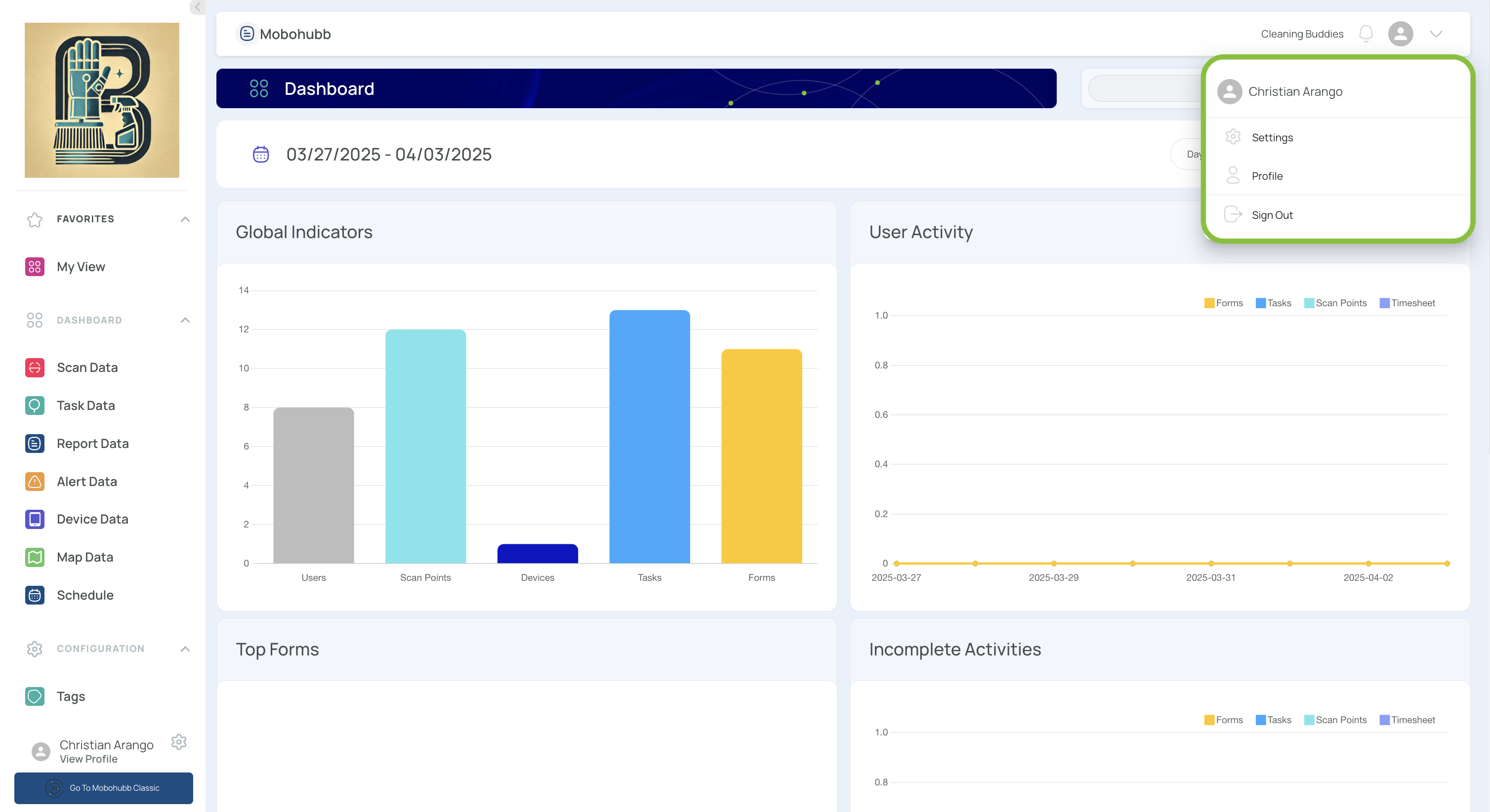
- Open the top navigation bar and select Settings from the dropdown menu.
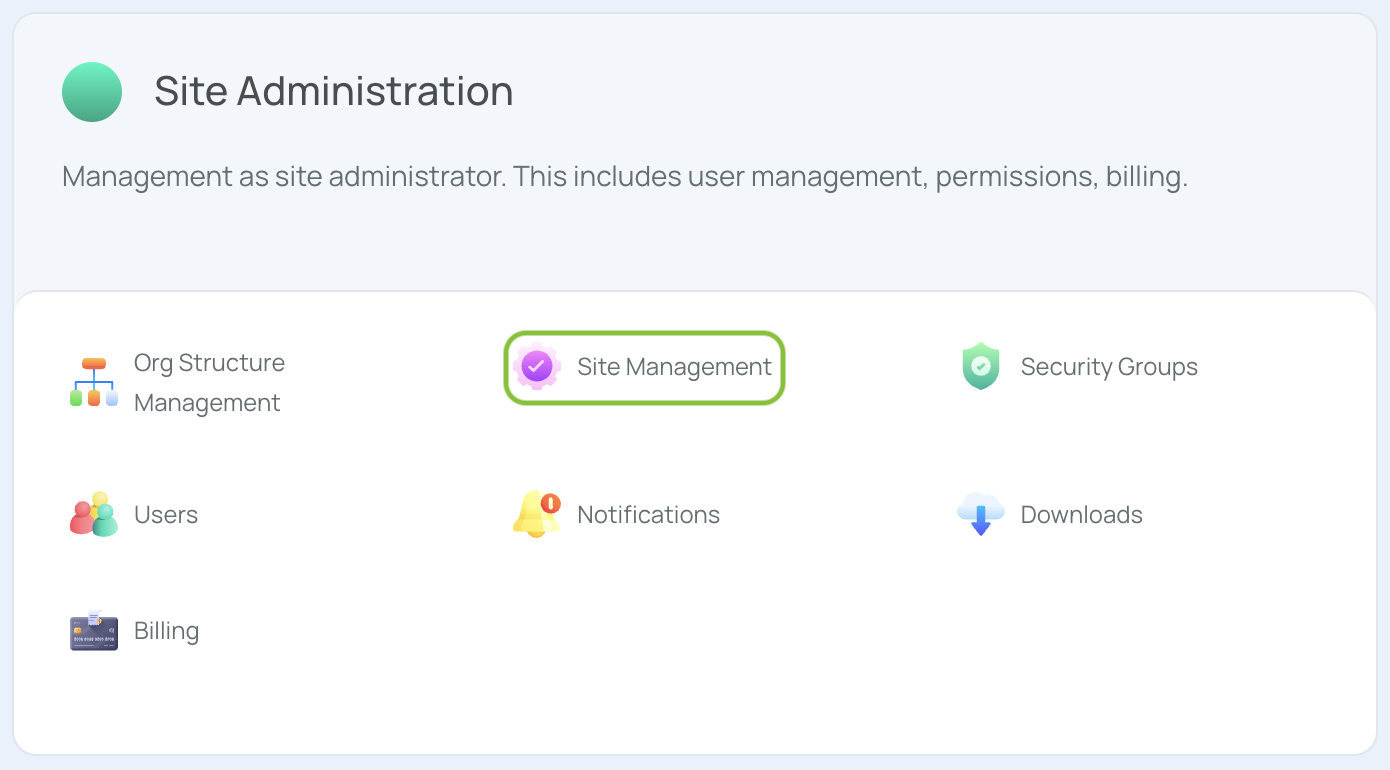
- Go to Site Administration → Site Management.
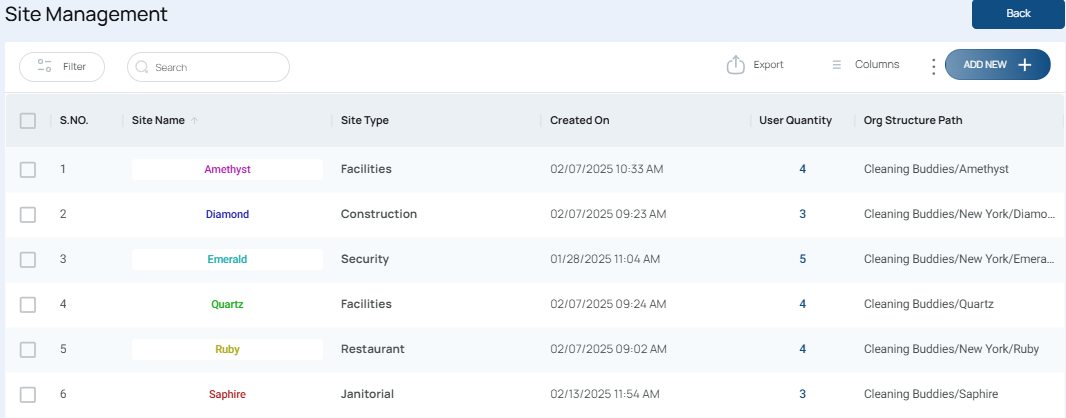
- Select the site you want to update, then click the site name.
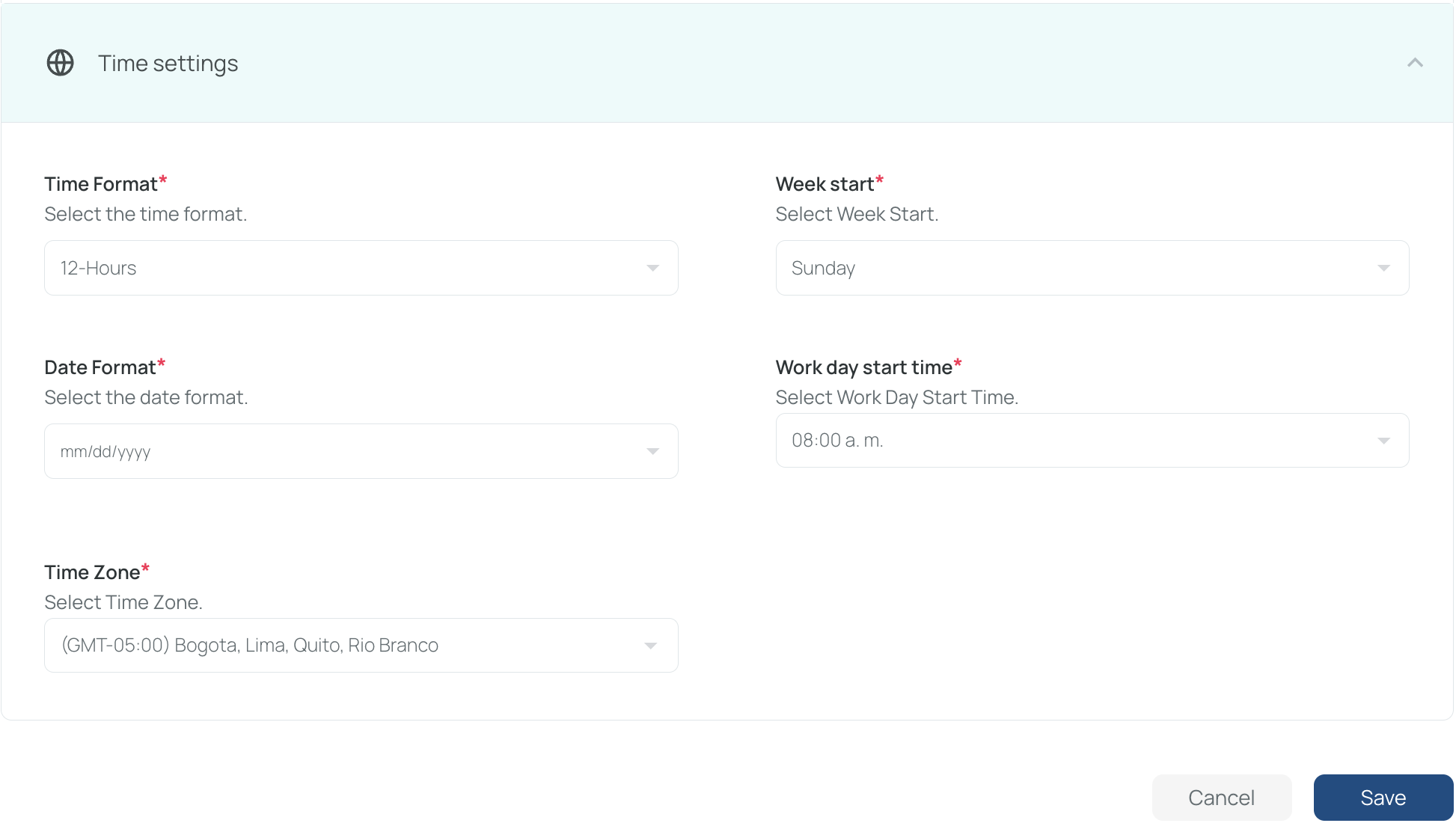
- In Branding & Time Settings, locate the Time Settings section and configure the fields as needed:
- Time Format: Select 12-hour or 24-hour format
- Date Format: Select the preferred format, such as dd/mm/yy or dd/mm/yyyy
- Week Start: Define the first day of the work week
- Work Day Start Time: Define the start time of the workday for working days
- Time Zone: Select the appropriate time zone for the site
ImportantBy default, Inherit Settings is enabled. This applies the organization’s branding and time settings to the site automatically.
To customize the site’s branding or time settings, disable this option.
- Click Save to apply your changes.
The site will now display information according to the selected time settings.
Updated 7 months ago