
Positions
Learn how to create and manage positions in mobohubb. This guide explains how to add new positions as reference information that can later be associated with users, helping to organize and manage your organization's structure.
In this guide you'll learn
- How to access General Settings and the Configuration area.
- How to add a new position using the "Add new" button.
- How to fill in and activate position details for proper organizational reference.
You can create positions in mobohubb and then associate them with the users you have created. These positions serve as reference information for your organization.
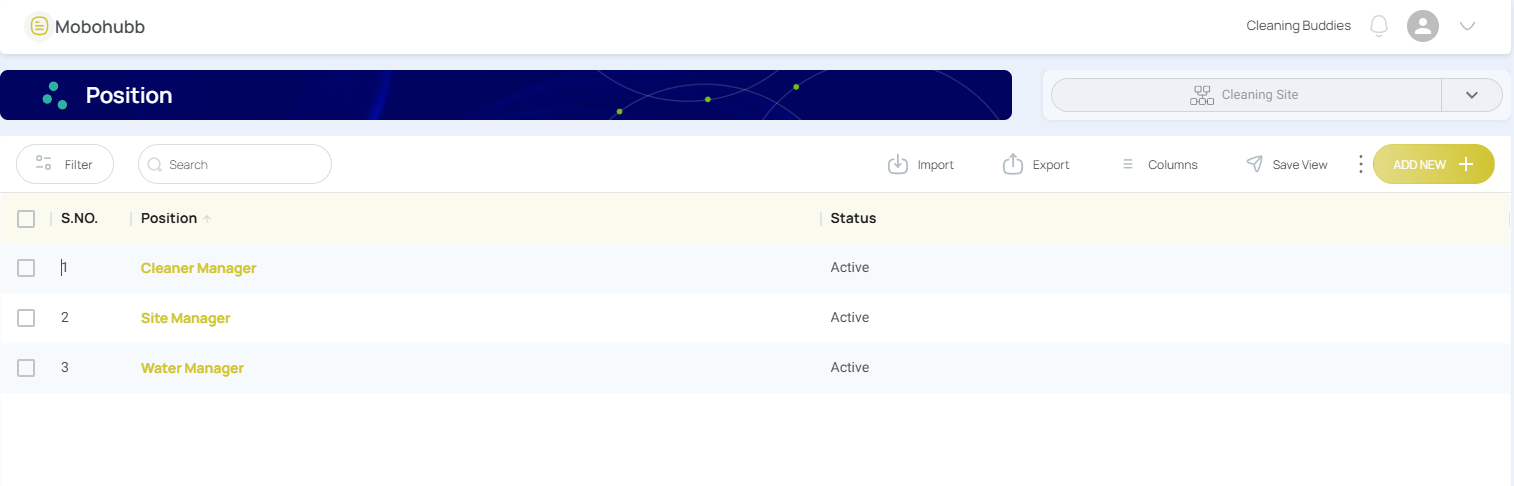
To add a new position, follow these steps:
-
Go to General Settings.
-
Navigate to the "Configuration" area and click on the "Position" section.
-
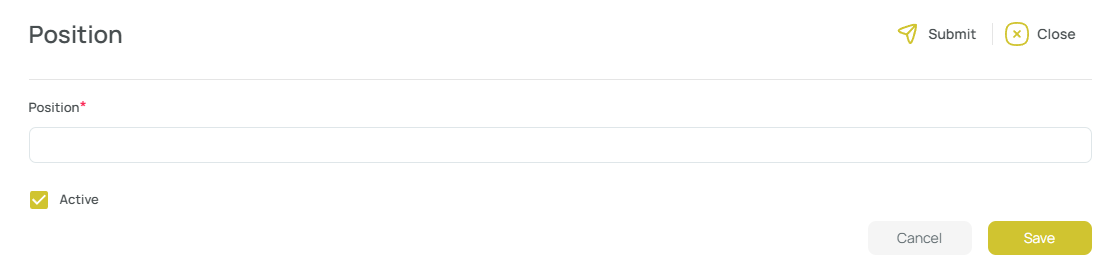
Click on the "Add new" button, located to the right of the interface. A form will open.
-
Fill in the details by adding the position name.
-
Check the "Activate" box.
-
Click the "Save" button to save your changes.
Updated 7 months ago